Bulk Jobs Management
The Bulk Jobs Management section in the admin panel allows administrators to monitor all bulk processing jobs created by users. Bulk jobs are used for generating product descriptions from CSV files, and this page provides a real‑time overview of their status, progress, and any failures.
Overview
When users upload a CSV file for bulk description generation, the system creates a bulk_job record. Each job processes items in chunks and tracks how many have been completed or failed. The Bulk Jobs page gives administrators full visibility into these jobs, including who started them, when, and their current state.
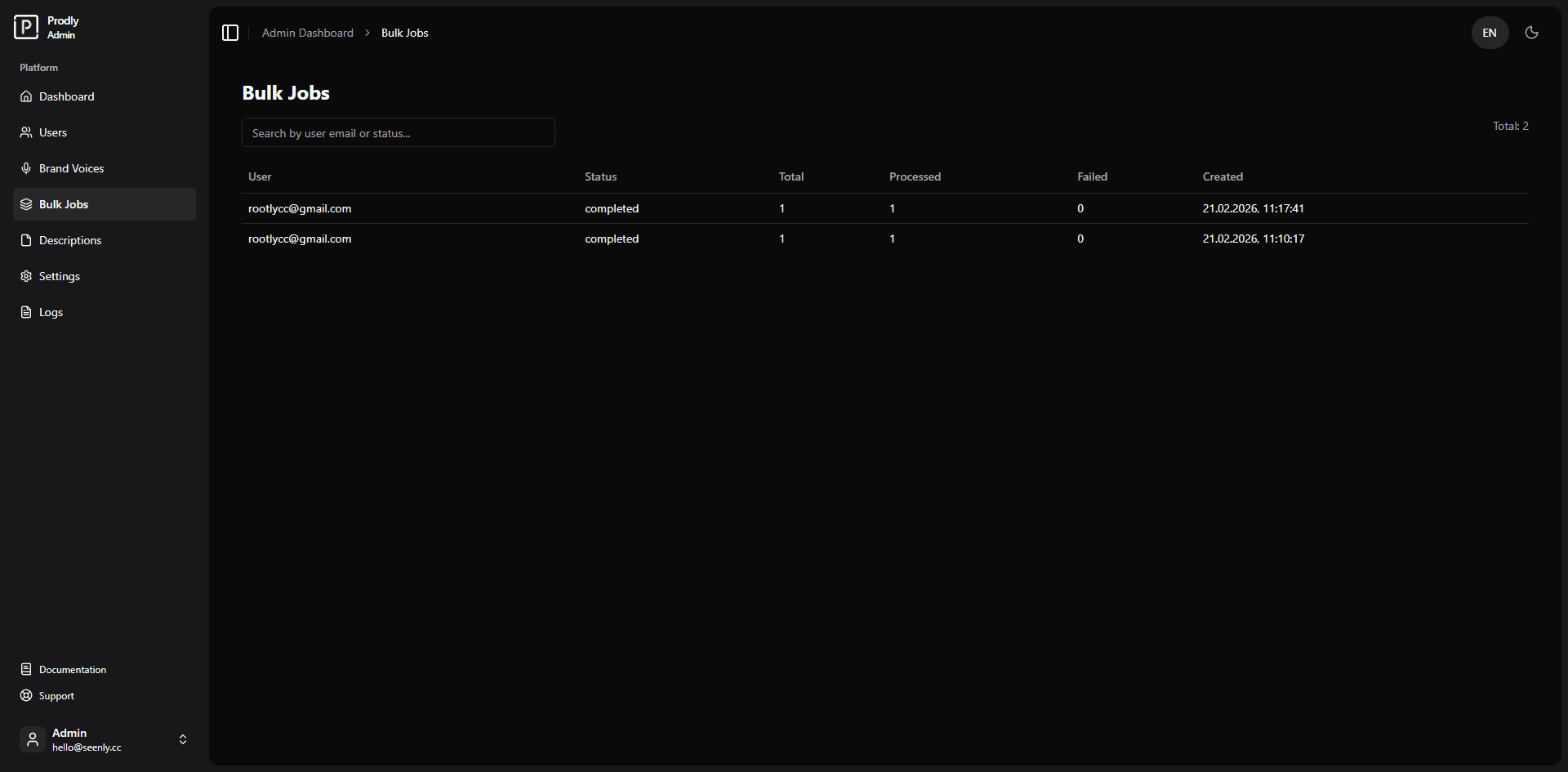 Example of the bulk jobs monitoring interface (screenshot placeholder)
Features
- View all bulk jobs – A paginated table listing every bulk job across all users.
- Search by user – Filter jobs by the email of the user who initiated them (debounced search).
- Job status indicators – Each job displays its current status (e.g., pending, processing, completed, failed).
- Progress tracking – Columns show total items, processed items, and failed items.
- Creation timestamp – Exact date and time when the job was started.
- Pagination – Navigate through large numbers of jobs with intelligent page controls.
Understanding Job Statuses
The status field can have one of several values, typically:
pending– The job has been created but processing has not yet started.processing– Items are currently being processed.completed– All items have been processed successfully.failed– The job encountered an error and could not complete (check failed items count).
Failed items are tracked separately; a job may complete with some failures. The failed_items column shows how many items could not be processed.
Using the Bulk Jobs Page
Viewing all jobs
Navigate to Admin Panel → Bulk Jobs. The table automatically loads the most recent jobs, showing 10 jobs per page.
Searching for jobs by user
Type part of a user’s email into the search field. The list updates in real time (with a short delay to avoid excessive requests) and resets to the first page. This helps locate jobs created by a specific user.
Tracking progress
For each job, you can see:
- User – The email of the user who initiated the job.
- Status – Current processing state.
- Total / Processed / Failed – Numeric progress indicators.
- Created – Timestamp of job creation.
If a job shows a high number of failed items, administrators may need to investigate the original CSV or contact the user.
Technical Details
- Data source:
bulk_jobstable joined withuser_profilesto display the user’s email. - API endpoints:
GET /api/admin/bulk-jobs?search=...&page=...&limit=10– fetches paginated bulk jobs.
- Debounced search: Uses
lodash/debounce(500 ms) to reduce server load. - Pagination: Configurable page size (default 10) with a compact page range that includes ellipsis for large page counts.
Interface Components
- Table – Displays job data with sortable columns (though sorting is not implemented in the current UI).
- Pagination – Provides Previous/Next buttons and clickable page numbers.
- Input – Search field with debounced change handling.
- Translations – All UI text is localized via
next-intlusing theadmin.bulknamespace.
This page is read‑only. Jobs cannot be edited, retried, or deleted from this interface. To modify or clean up jobs, use direct database access or additional admin tools.
Conclusion
The Bulk Jobs Management page equips administrators with essential monitoring capabilities for CSV‑based description generation. By providing clear progress metrics and user‑level filtering, it helps ensure that large‑scale processing tasks run smoothly and any issues can be quickly identified.