User Management
The User Management section in the admin panel allows administrators to view, search, edit, and delete user accounts. It provides a comprehensive interface for managing all registered users, their subscription plans, credit balances, and administrative privileges.
Overview
This page displays a paginated list of all users with key information. Administrators can quickly find users by email, adjust their credits or plan type, grant admin rights, or remove accounts when necessary.
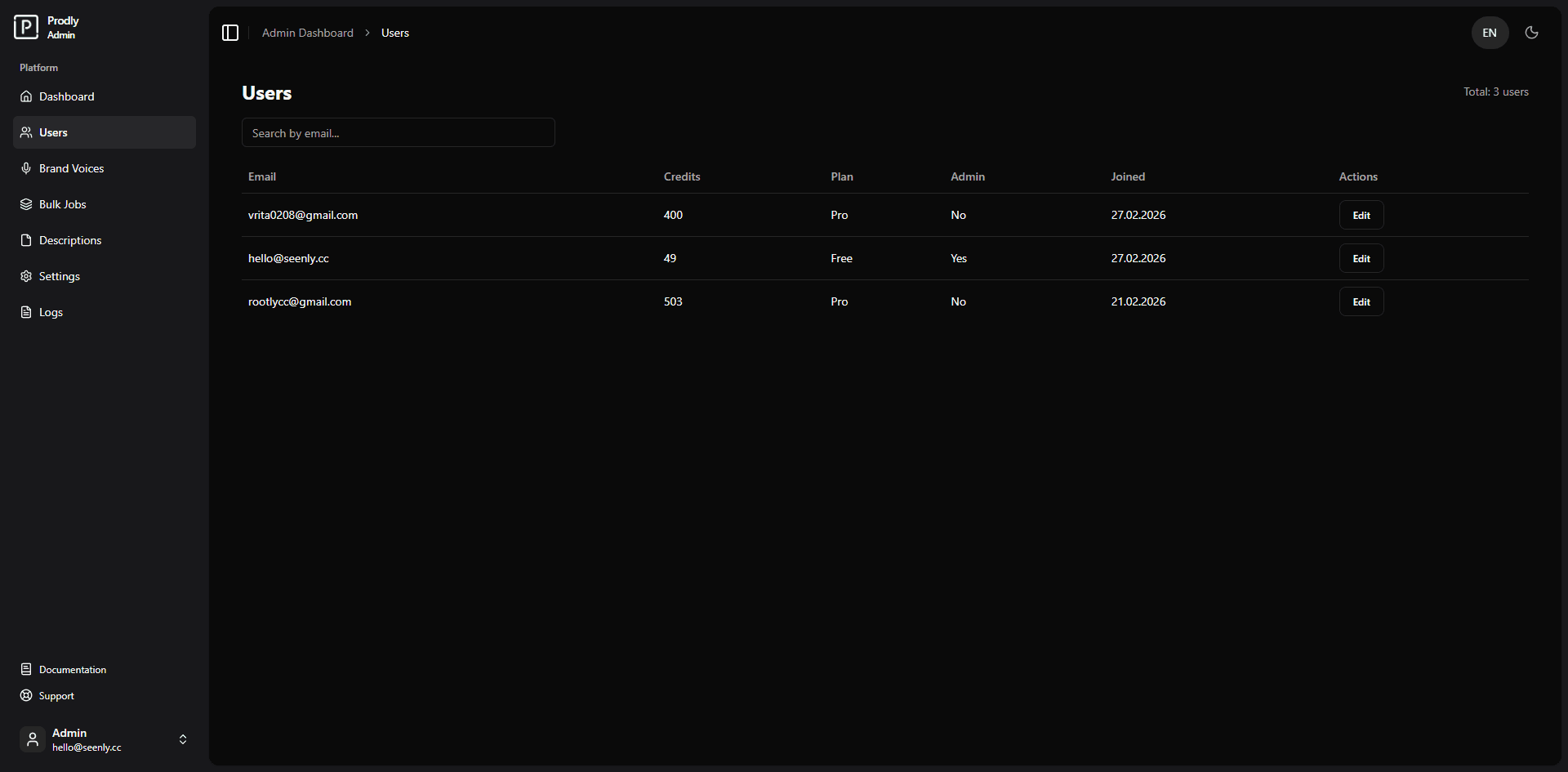 Example of the user management table (screenshot placeholder)
Key Features
- Search Users – Real‑time search by email address (debounced to reduce server load).
- User Table – Shows email, remaining credits, plan type (free/pro/enterprise), admin status, and join date.
- Edit User – Open a modal to change credits, plan, or admin status.
- Delete User – Permanently remove a user and all associated data (with confirmation).
- Pagination – Navigate through large user lists with intelligent page numbering and ellipsis.
Using the User Management Page
Searching for Users
Type an email address (or part of it) into the search field. The list updates automatically as you type, resetting to the first page of results. Click the Clear button (if implemented) to reset the search.
Editing a User
- Click the Edit button in the actions column of the desired user.
- A modal dialog appears with the following fields:
- Credits remaining – numeric input for the user’s credit balance.
- Plan type – dropdown with options: Free, Pro, Enterprise.
- Admin – checkbox to grant or revoke administrator privileges.
- Modify the values and click Save to apply changes. A success or error toast will appear.
- Click Cancel to close the modal without saving.
Deleting a User
Deleting a user is permanent and cannot be undone.
- Open the edit modal for the user you want to delete.
- Click the red Delete button at the bottom left of the modal.
- A browser confirmation dialog will ask you to confirm the deletion.
- If confirmed, the user and all associated data (profiles, descriptions, brand voices, bulk jobs, usage logs) are permanently removed from the database.
Pagination Controls
- Previous / Next buttons navigate one page at a time.
- Page numbers show the current range; ellipsis (
...) indicate skipped pages. - Click any page number to jump directly to that page.
Technical Details
- Data Source:
auth.usersjoined withuser_profilestable. - API Endpoints:
GET /api/admin/users?search=...&page=...&limit=10– fetches paginated users.PATCH /api/admin/users/[id]– updates user profile (credits, plan, admin).DELETE /api/admin/users/[id]– deletes user and cascades to related records.
- Real‑time Search: Implemented with
lodash/debounceto avoid excessive API calls. - Pagination Logic: Uses a configurable page size (default 10) and generates a compact page range with ellipsis.
What Happens When You Delete a User?
- The user’s record is removed from
auth.users(Supabase Auth). - All rows in dependent tables (
user_profiles,brand_voices,descriptions,bulk_jobs,usage_logs) that reference the user are deleted due to foreign key constraints withON DELETE CASCADE. - The action is irreversible; there is no “soft delete” or recycle bin.
Conclusion
The User Management page gives administrators full control over the platform’s user base. With powerful search, inline editing, and safe deletion workflows, it ensures that user data can be managed efficiently and securely.