Usage Logs Management
The Usage Logs section in the admin panel provides a detailed audit trail of all user activities related to description generation. Every credit-consuming action (single generation, bulk processing, image‑based generation) is logged, allowing administrators to monitor platform usage, track user behaviour, and investigate issues.
Overview
Usage logs capture key information about each generation event: who performed the action, what type of action it was, how many products were involved, and any additional metadata. This page gives administrators a comprehensive view of these logs, with powerful search and bulk deletion capabilities.
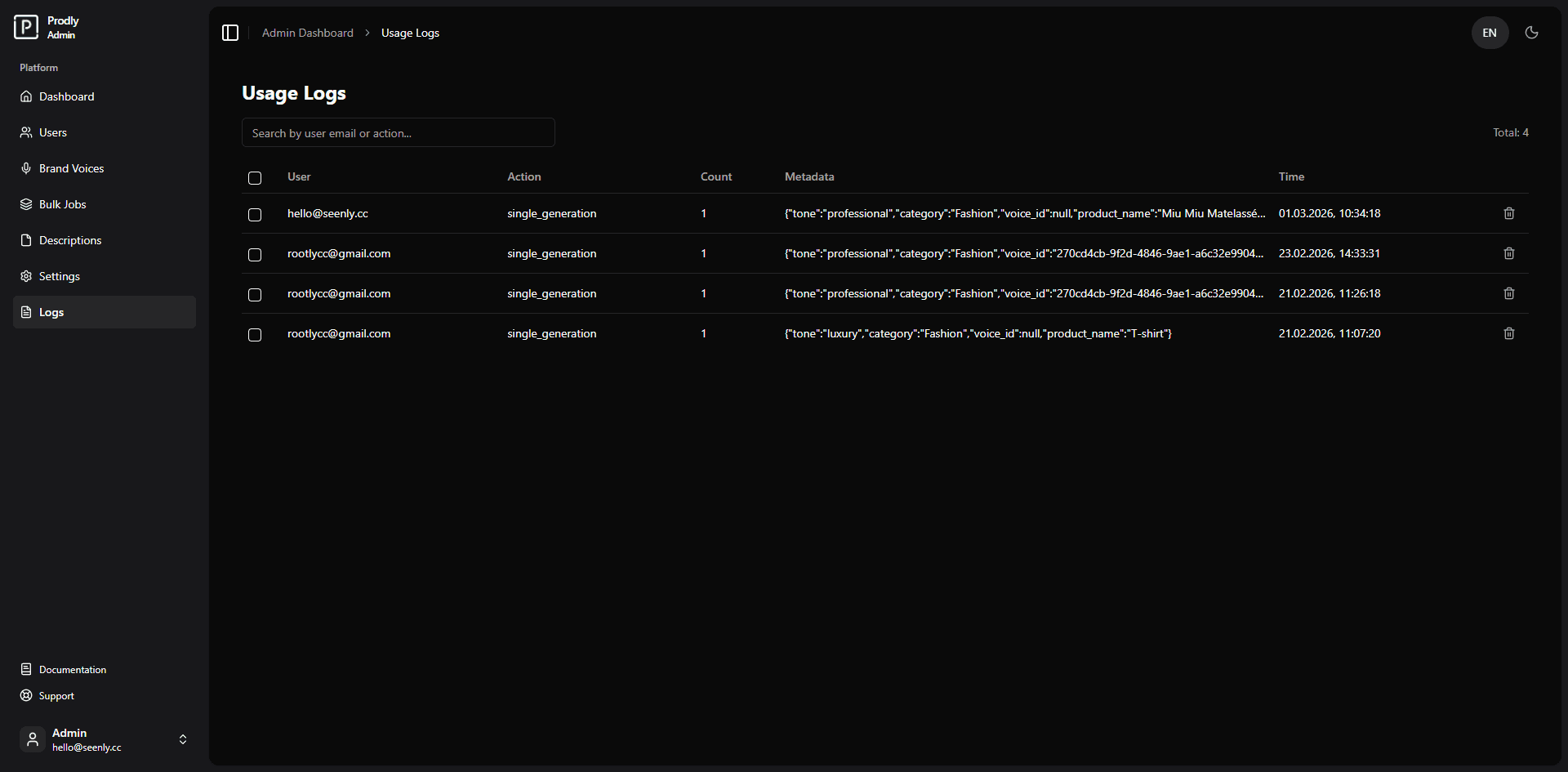 Example of the usage logs interface (screenshot placeholder)
Features
- View all logs – A paginated table displaying every logged action.
- Search logs – Filter by user email or action type (debounced search).
- Select logs – Use checkboxes to select individual logs or select all on the current page.
- Delete single log – Permanently remove one log entry.
- Bulk delete logs – Delete multiple selected logs at once.
- Pagination – Navigate through large log collections with intelligent page controls.
Understanding Log Entries
Each log entry contains the following information:
- User – The email address (or ID) of the user who performed the action.
- Action – The type of action (e.g.,
single_generation,bulk_upload,image_analysis). - Count – The number of products generated in that action (usually 1 for single generation, more for bulk).
- Metadata – Additional JSON data (e.g., category used, tone, any errors). Hover or click to see full details.
- Time – The exact timestamp when the action occurred.
Metadata is stored as a JSON object and may contain useful debugging information, such as the prompt used or any error messages.
Managing Usage Logs in the Admin Panel
Viewing all logs
Navigate to Admin Panel → Usage Logs. The table automatically loads the most recent logs, showing 10 entries per page.
Searching for logs
Type a keyword into the search field. The system filters logs by user email and action type. The search is debounced (500 ms delay) to reduce server load, and the page resets to the first page automatically.
Selecting logs
- Use the checkbox in the table header to select all logs on the current page.
- Use individual checkboxes to select specific logs.
- The “Delete Selected” button appears when at least one log is selected, showing the count of selected items.
Deleting logs
Deletion of logs is permanent and cannot be undone. This action removes the audit trail but does not affect the actual generated descriptions.
- Delete a single log: Click the trash icon in the corresponding row and confirm.
- Bulk delete: Select the desired logs using checkboxes, click Delete Selected, and confirm the action.
- A success toast notification confirms the deletion, and the table refreshes automatically.
Technical Details
- Data source:
usage_logstable joined withuser_profilesto display the user’s email. - API endpoints:
GET /api/admin/logs?search=...&page=...&limit=10– fetches paginated logs.DELETE /api/admin/logs?ids=id1,id2,...– deletes one or multiple logs (comma‑separated IDs).
- Debounced search: Implemented with
lodash/debounceto avoid excessive API calls. - Pagination: Configurable page size (default 10) with a compact page range that includes ellipsis.
Interface Components
- Table – Displays log entries with sortable columns (though sorting is not implemented in the current UI).
- Checkbox – For selecting individual logs or all on the page.
- Pagination – Provides Previous/Next buttons and clickable page numbers.
- Input – Search field with debounced change handling.
- Button – Delete Selected (appears conditionally) and individual delete icons.
- Translations – All UI text is localized via
next-intlusing theadmin.logsnamespace.
Conclusion
The Usage Logs Management page gives administrators full visibility into how the platform is being used. With search, selection, and both single and bulk deletion, it provides the tools needed to audit activity and maintain a clean log history.